Sonos your kitchen

Although the best music setup in the house is the surround sound system in the TV room, the room in which I listen to music most often is the kitchen. I do so while cooking, while cleaning, and even occasionally while eating.

4

The music setup in the kitchen was as follows: an audio receiver, a CD player, and iPod dock / headphone jack (for my tablet) connected to two small speakers. All wired; no remote control access. Sound quality was OK, and I was sufficiently accustomed to docking my iPod (classic; no bluetooth, no wifi) or connecting my tablet via headphone jack that it didn’t seem especially inconvenient.

But the whole system was at the back at the kitchen, and I mostly worked at the front. Apart from the fact that it was a bit annoying to have to stop cooking and walk over to change the volume or song selection, I often just couldn’t hear the music properly once the fans and frying got going.

A first-world problem for sure. Nevertheless, for Christmas I requested some way to get my music playing closer to where I was cooking.

Much research ensued, and wireless seemed the way to go. But wireless meant somehow still playing my iTunes library despite my not owning any “modern” iDevices. And that certainly suggested Sonos as one option.

What is Sonos?

https://youtu.be/hd6v52RULbY

Sonos TV commercial

Essentially, Sonos is a family of wireless speakers and components that are all controlled by an app that runs on Android, iOs, and Windows. The key marketing features are:

  1. Easy setup. “It just works.”
  2. Access to “all the music in the world”: your owned music, streamed music, online radio—all available through one interface, combined in whatever way you choose.
  3. Full-house control; that is, ability to play different (or the exact same) queues of music in any room in the house that has a Sonos-connected speaker.

The main downside? Price. But, we figured that we could start with just one speaker—the new Play 5—for the kitchen. Then if we liked the Sonos app, expand from there.

The setup

The Sonos Play:5 just sat around in its box for about 2 weeks before we got the courage to try to set it up. (Yes, I opened my Christmas present early. Not like it was a surprise.)

And it started out well. Getting the Play 5 onto our wifi network was simple. Downloading the app on tablet and PCs—no problem. Linking in my Google Play, SoundCloud, LastFM, Spotify accounts (note that you need a paid account)—also a breeze.

The problem was the iTunes playlist, because I had a somewhat non-standard setup: music files on a NAS (network attached storage), iTunes music library (playlist data) on PC.

To get the thing working, Sonos needed two connection points: one to the music directory on the NAS, another to then PC iTunes library location. Retrospectively, that seems obvious, and in fact it wasn’t hard to do.

computer-repair

But figuring out that’s all we had to do required a lot of experimentation, caused a few tears, and took the better part of an afternoon. (And yes, I did read the documentation!)

Using Sonos: The things I fretted about vs. the reality

Ahead of time, I was a little concerned (and obviously only in between bigger worries about climate change and world peace and such) about the following regarding use of this system.

Fret: Would I have to start my PC, and maybe even iTunes, just to play my music in the kitchen?

Reality: No, not with my music setup. Sonos copies in the iTunes playlist data, so neither iTunes nor the PC have to be running. It’s just the NAS that has to be on for the music files to be accessible. And the NAS  was already programmed to start when we got home from work and to be on all day on weekends. (It’s handy to be married to a handy husband.)

Fret: How can my Android tablet possibly control my iTunes playlist on a NAS it doesn’t even know about?

Reality: If you’re using Sonos, that “just works”. (The non-Sonos’ed can try the Retune app. Pretty cool! But iTunes does have to be running for that one.)

Fret: Would I still be able to use the Musixmatch lyrics app? (Because I kind of love that app.)

Reality: Yes. While Musicxmatch isn’t fully integrated into the Sonos app, it does work quite well in “Listening” mode.

Spotify Lyrics display
The rather esoteric lyrics to Queen’s “Fairy Feller’s Master Stroke”

Fret: Can I continue playing a music list where I last left off? (This matters to me. Don’t judge.)

Reality: Sonos absolutely, by default, picks up where you left off.

Fret: Will it play our local CBC radio station? Can you program it to start and stop automatically at a certain time? (Otherwise, we won’t be able to expand Sonos to our bedroom. CBC is our alarm clock.)

Reality: Yes, local CBC radio is one of the ba-jillion radio stations included. And yes, Sonos has timer functionality.

Fret: When you change your iTunes playlists, how much of a pain is it to get the update into Sonos?

Reality: Haven’t actually done that yet, but appears to be a single-click process you can perform on PC or tablet (allowing time for it to re-scan the files).

Fret: Does it keep track of play counts and dates?

Reality: No, it does not. This is the one disappointing item.

In iTunes I created “smart” playlists with criteria such as “High-rated songs I haven’t played in the last six months” and “Songs I’ve played fewer than two times each”. And I use those playlists a lot to avoid “I’m sick of this song!” syndrome.

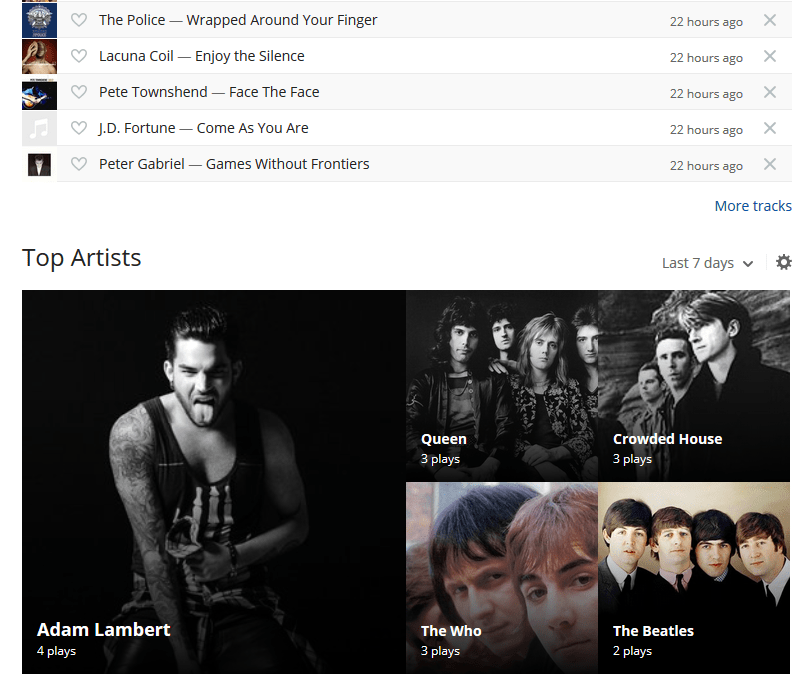
But Sonos has nothing like that built in. However, it does integrate with Last.fm, which does keep track of what I’ve played, on both iTunes / iPod and Sonos. And research indicates there might be some geeky, scripty ways to make use of that data. I will be looking into that more later.
last.fm
Sonos playlist data for the week, courtesy Last.fm. (I’m sure you’re all shocked about Top artist.)

Features I didn’t even realize I wanted, but turns out I do

10kindsoflonely_art-500x500This one seems dumb, but I’m a bit obsessive about album art, and I loved seeing some of that blown up in size on my 12.2 inch tablet when I’d previously only viewed it as a thumbnail.

More significantly, the much more dynamic (compared with iPod) song queue is fun! For example, I can:

  • Start with an iTunes playlist and add songs from Spotify or Soundcloud (or whatever)
  • Combine various playlists into one queue
  • See what songs are coming up, and edit the list if I want—without affecting the original playlists
  • Decide I want to, say, switch to a podcast now, listen to that, then automatically return to my same spot in the music queue
  • Save my current queue as a Sonos playlist for later reuse

But it’s a speaker. How does it sound?

Kids, this speaker sounds so good, I’d like to marry it and have its babies. 🙂

Sunny ways—Canada is back

I was nervous Monday.

Despite my reduction in news consumption, and even though off on a wine-soaked vacation last week, I was well aware of what the polling was showing: That Harper’s horrible Islamophobic campaigning had seemingly backfired, and that the Liberals’ numbers were rising steadily—showing a comfy 9-point lead in one of the last polls to be released.

But also knew that polls were often wrong, and at any rate, were entirely meaningless. Only the vote counts for real.

My less emotionally invested yet still interested husband set up his tablet in anticipation of result, using CBC website tools to track certain ridings. He was at the ready as soon as Eastern results were posted. As I distracted myself with housework and such, he was giving reports:

“It’s looking good.”

And a little later: “It’s looking really good.”

And we all know what happened. Canada’s Atlantic provinces turned into one big Liberal red lobster.

Nova Scotia riding results
Yes, I know this is just Nova Scotia, not all the Atlantic provinces…

Of course that made me feel better, but we still had a big time gap til the more decisive Quebec / Ontario results.

So we watched a little iZombie to pass the time.

Around 9:30, I turned on the TV and said I’d just “have a look.” Of course, then I couldn’t stop watching (though I did bounce around channels a lot), mesmerized as the “Leading  or Won” seat counts just kept ticking up. By 10:00, they’d called that the Liberals would have a plurality of seats. The numbers kept going up, til it was clear that majority wasn’t an impossibility after all. And that was officially called around 10:35.

Canada votes Liberal majority
Holy doodle.

This would be the first time in about 20 years that a Federal candidate I voted for was elected as part of the governing party. Not to mention the first time in 10 years that I’m not appalled by a Federal election result.

It is unfortunate that the NDP and Greens were collateral damage in this; I didn’t wish ill to either of those parties, who lost some good MPs. But they were just as out-campaigned by the Liberals as the Conservatives were. The Liberals were able to do something else that hasn’t happened in decades: inspire disaffected voters to come back to the polls. The Liberals received more votes than in any party in Canadian history.

Even when the overall results were evident, I couldn’t stop watching. I looked up particular ridings. I cheered the principled Michael Chong’s victory, the only Conservative for whom that was the case.

I was pleased that my local candidate, Bardish Chagger (#MovesLikeChagger) garnered nearly 50% of the vote. I was glad to see her joined by three other Liberal MPs, replacing our previous set of middle-aged, white Conservative MPs with a more diverse group.

New Liberal MPs of Waterloo Region
(And the remaining middle-class white guy’s name is Bryan May, so he can’t be all bad!)

I liked that the Liberals won seats in all provinces, even Alberta and Saskatchewan! (What’s up with Saskatchewan, anyway? Why so Conservative?)

And I stayed up to watch all the speeches. I admit to being moved by Trudeau’s story about the Muslim woman and her baby. (But then again, it was nearly 1:00 AM, so that might just have been an exhaustion response.)

Trudeau and baby with her mother
This is the picture: It really happened!

And while I was going to say to say that results really don’t affect my daily life much, this one has. Because now that I know this story has a happy ending, I’ve ended my news diet, and have happily returned devouring interesting news stories wherever I can find them.

Though I must say I didn’t expect quite so many of them to be about how “boinkable” Justin Trudeau is. World: some respect for our hot new PM-designate, please!

Hey Google: Once may be good, but twice isn’t necessarily better

The iTunes playlists that Google automatically backs up to their cloud get hopeless cluttered with multiple versions of each song, til you reach the maximum size of 1000 songs. You can manually remove duplicates — one by one, folks! — but others crop up in their place.

It’s irritating. You can’t add any more songs to those playlist. When you play them, they repeat songs despite the “No repeat” setting. And downloading a playlist takes way more space and time than it should.

Duplicate songs screenshot
How a 75-song playlist looks when bloated to 1000 via repeats. Google must think I really want my Afternoon Tea.

I searched for solutions, but all I’ve found is this Python script from GitHub. And to run it, you just need to install an API. And to run that, you just need to set up a WebClient. And to do that, you just need a Computer Science degree.

So I’m just going to live with the duplicate problem. Those aren’t my “real” playlists anyway–they’re just a backup. A free backup, at that. So it’s a little buggy. So be it.

Google music services: Take two.

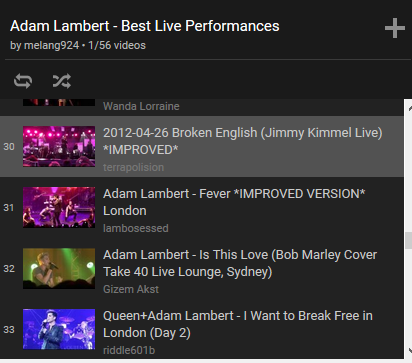
I don’t know if you’ve tried to play a YouTube playlist in Chrome recently, but this week, I did. I found a nice 56-song playlist of live performances, started it off at song 1, and figured I’d have a good set of tunes going for a few hours while I worked away.

Only it kept repeating songs, sometimes just one, sometimes a loop of two or three. It took me a while to figure out that this happened whenever an ad played–every three songs or so. It seemed to then go back in the playlist instead of forward.

I could “reset” the playlist to the right song manually, but after the sixth or seventh time of doing that when all I wanted was a steady flow of tunes, I was getting really cranky.

YouTube playlist - Adam Lamber live
This “no repeat” YouTube playlist wasn’t so much playing that way

I actually got to wondering if YouTube had a paid, ad-free version I could get instead. I was about ready to plunk my money down.

However, Google was not ready to take it. While they plan to launch subscription YouTube someday, it ain’t available yet.

But Google did help me out. Through their search engine I came across this solution:

  1. Use Firefox, not Chrome
  2. Add in the most wondrous (and free, no restart required) Firefox extension, Adblock Plus

After that, not only did the song repeating stop, so did all the ads! Woo hoo!

I’m sure many of you are like, “Duh!”, because you’ve been blocking browser ads for years, but if I’ve helped even one person not hear a song more times than they’d like (“these are my problems, my first-world problems”), my work here is done.

Spotify: Dipping a foot in the stream

Thanks to their 0.99 cents for three months offer, I’ve been trying out Spotify Premium for a few weeks. Here are my inconclusive conclusions about it so far.

What is Spotify?

It’s a streaming music service, whereby you can listen to any song in their vast collection from your PC, phone, or tablet. They have apps for each and your login keeps your account synchronized between devices. Artists are paid according to their streaming popularity (though whether they are paid enough is under debate).

What’s the difference between free Spotify and Spotify Premium (paid)?

With Premium, you get:

  • No ads, which otherwise are played every few songs.
  • Higher music quality. And yes, it’s a noticeable difference, at least when playing through a good stereo system.
  • Play any song on demand. on any device. The free service prevents you from doing this on the mobile apps.
  • Ability to download songs on phones and tablets for offline playing, thereby reducing data usage. (You don’t keep the songs; they’re only available within the Spotify player.)
  • Skip as many songs as you like. With free, you can do this only five times per hour.

I’m not a big song skipper—if I’m hitting so many songs I don’t like I’d rather just change playlists or artists—but otherwise I would say the premium features make Spotify a much more pleasant listening experience.

What else is good about Spotify?

  • The size of the catalog, for sure. It’s terrific for checking out new (or old) artists or songs you’re curious about or revisiting old favorites.
  • The integrated lyrics. In the desktop version, with one click you transform the app into a sort of karaoke machine, with the lyrics scrolling by as the singer sings them. If the timing or words are wrong or missing, you can supply them yourself, if so inclined. In the Android app version, you can achieve the same with the floating MusicMix app.
Spotify Lyrics display
The rather esoteric lyrics to Queen’s “The Fairy Feller’s Master Stroke”
  • The ability to follow other people’s playlists. Although, to be honest, I’m only following Adam Lambert’s. Still, it gives me a little happy that I get notified every time Adam adds a song to his playlist. (Even though we don’t have 100% the same taste in music, as it turns out.)
Notification of update to Spotify playlist
Now Playing with Adam Lambert (I wish… 🙂

What’s not so good about Spotify

  • They have a desktop browser version that makes me feel stupid, because every time I go there, I have a heck of a time figuring out how to get to my music. The link to that part of their site is teeny and buried and it’s so annoying.
Spotify web screen cap
Scroll down, way down, the Spotify website to get to the actual music player

(I guess it’s their way of pushing you to their desktop app instead, the usability of which is fine.)

  • No way to mark songs as favorites, which is a weird omission. I’m listening to find songs I like and might want to get back to, but there’s no easy way to do that. You can add songs to “My music” or playlist, but that isn’t quite the same…

How does Spotify compare with Google Play Music?

To truly answer this question, I’m going to have to give Google’s paid version another trial run.

But what I can say so far is, that Google beats Spotify on the following counts:

  • Google has a thumb’s up button to mark the songs you like.
  • Google does a better job of integrating my actual songs—that is, the thousands of songs I’ve purchased and lovingly categorized in iTunes lo these many years. With my permission, Google just takes all that music and puts it in the cloud for me, using their version when they have it and uploading my copy when they don’t. And unlike Apple, they do that for free, up to a size limit I’m never going to reach it. Spotify can only handle local “owned” music.

    That’s all lovely; however… Having looked at my Google playlists more closely due to writing this post, I have discovered that they are kind of a mess, with each song in every one of them being repeated up to four times, for some reason.

iTunes screen cap
My Summertime playlist in iTunes is a mere 195 songs, no repeats
iTunes screen cap
Google bloats this exact same playlist up to 999 (!) songs by repeating each song multiple times….

And, Google playlists are arbitrarily limited to 1000 songs. Which is not enough for me. But, I am at this point grateful for that limit, since I suspect I would otherwise have each song repeated hundred of times in those playlists, instead of mere four or so…

When I’m truly trialing Google, I’ll have to investigate how to clean that up. And see if it’s really true that Google’s auto-generated playlists, based on an artist or song you like, are much better that Spotify’s (as I’ve heard).

In the meantime, I can say what’s about the same between the two:

  • The monthly price.
  • The option to download for access without data usage on mobile.
  • The size of the catalog of streaming songs (so I’ve heard).
  • The integrated lyrics in the app version.

And what it lacks compared with Spotify:

  • The web version doesn’t have integrated lyrics, at least not with such a good interface.
  • It does not allow me to follow celebrity playlists.
  • Also, Google doesn’t have an, ad-paid free option for listening to the streaming music. (I think this is true.)

Aren’t there other music streaming services?

Sure, lots, like Rdio, but Spotify is the market leader, and Google Play Music is a logical alternative for those using Android devices (as the upcoming Apple Music will be for iOs people).

And anyway, this blog post is long enough already.

Is it worth paying $10 a month for music vs. buying music as you want it and listening to that?

That is the question that I haven’t entirely figured out the answer to yet.

Because my purchased music, it has to be said, does has its own benefits:

  • It is already paid for.
  • It is already organized exactly the way I like it.
  • I don’t always to discover; sometimes I want what I know.
  • But also, I have enough of music (over 8000 songs) that I can actually do a fair amount of experimental listening just within my own catalog.
  • I can play it in my car via CD or iPod. But my car (despite being fairly new) has no bluetooth or wired support for Android devices, so no streaming services work in it.
  • I actually do have some songs you can’t get on the streaming services. They have a lot, but not everything.

But how long can I stick with buying rather than paid streaming?

That is the question. Apple no longer makes iPod Classics and has been basically ruined iTunes. (I’m still using version 10.) So what am I going to play “my” music (about 60 GB worth) on in the future?

And as for acquiring new stuff,  who knows how much longer Amazon, Google, and Apple will be just as willing to sell you a CD or a digital music file as they are to have you pay a monthly rental fee for it?

Travel tips: Six ways to save

I clearly enjoy a certain amount of luxury when I travel, so can hardly be called a budget traveler, but I can be an incredible cheapskate about certain things. Like bank charges. And roaming fees.

So here are some ways I found to save on these things. Along with some ways to save your sanity, and maybe do less damage to the planet.

Tip 1: Use a credit card that doesn’t charge foreign transaction fees

We do tend to use the plastic a lot when traveling, but it only dawned on us recently that we were being charged an extra 2.5% per transaction for the privilege. That’s a lot!

Some web research revealed that there are cards that don’t charge such fees. This motivated me to accepted Amazon.ca’s persistent offers to get their Visa credit card.

Now, I don’t know if it’s the only credit card that offers this perk, but we’ve been happy with it so far. It charges no annual fee, and you earn 1 point per dollar spent in general, 2 points per dollar spent at Amazon. Once you’ve earned enough points, you automatically get a cash back credit of 1% on your credit card.

As with most points credit cards, the interest rate is terrible, so we must always pay it off in full. But by using that on our Seattle trip, I estimate that we saved a good 2.5% in total! And we earned $20 back in points.

Tip 2: Get some foreign currency before you leave

Haven’t yet found a way to avoid out-of-country ATM fees, so we always try to get some foreign currency before we go. Our supplier of choice is Currency Converters, who charge no fees and carry a wide range of currencies, and can order anything not right in stock.

Tip 3: Use a US SIM card in an unlocked phone

My Canadian cell provider offered one week of US service for $40 with unlimited texting and calling, but capped at 250 MB of data.

Or, I found I could buy a Roam Mobility SIM card and pay $4 a day for unlimited texting calling, and 350 MB of data every day! Sold!

In fact, there are a lot of options for US SIM cards, and I don’t know if this one is the best. I did like that I could buy and set it up in advance, (right from my local gas station), and that it could be activated for the exact amount of time needed, down the hour. And unlike some cards, it included calls to Canada, not just the US.

Setting it up couldn’t have been easier (beyond struggle to not lose the tiny SIM cards), and it worked a treat.I totally loved the novelty of not worrying about using data on my phone! The only times I had service issues were in the mountainous regions, which is understandable.

Climbing Mount Storm King
Your cell phone won’t work here.

At Lake Crescent, I had only “emergency service”, and was a bit stunned when my phone started shouting out Amber Alerts. At regular intervals. I finally had to just turn off the phone.

Then when home, I watched Sleepy Hollow, and Ichabob Crane encountered the same phenomenon! So I guess that’s a thing. (Do they not do that here, or would they if we ever had Amber Alerts, but we never do?)

Tip 4: Take the light rail to and from the airport

The train from Seattle airport to downtown, where our hotel was, was $2.75 each. A cab would have been about $55.

Furthermore, the train runs frequently, and traffic in Seattle is terrible, so I’m not sure you’d save much time in the cab, either.

So go LTR.

Tip 5: Consider flying out of Kitchener Airport

OK, this one is perhaps not a money-saving tip, as I’m sure it’s a lot cheaper to fly out of Buffalo.

But it’s much nicer flying out of a tiny airport, where yours is the only flight they have to deal with at that time. And yes, we had to transfer through Chicago, but honestly, I have never had so much assistance with an airport transfer in my life. All along were staff making sure we got in the right line, used the machines effectively, found the right gate.

It was even easier on the way home, when our luggage transferred through and we didn’t have to do double customs and security.

Parking—right at the airport, of course—was only $55. About half the off-airport cost at Pearson. So there’s that…

Tip 6: Rent a Prius!

Did we really save money? I don’t know. It was only $17 the one time we had to fill up, but the rental was slightly more than with a conventional car.

Did we help save the planet? Dubious, given that we also flew across the country.

But how often do you get to drive a Prius? Though I must say your odds are much better in Washington State, because they’re all over the place there. Must be the Prius capital of the continent.

Me and the rental Prisu
The rental Prius

(We also, by the way, stopped and looked at Tesla which was being exhibited in Seattle. Very nice! Of course, they didn’t let us drive it. But they did mention that Washing state was also the Tesla capital of the continent. Bit of a granola state, I guess.)

Most notable difference on the Prius vs. a gas guzzler? Lack of zoom zoom. Although there is a Power button you can push if you really do need some acceleration in a hurry. And it is a pretty quiet car. It also has these neat displays showing you when you’re drawing on battery power vs. engine power, so that was some built-in entertainment.

On sitting less

So back in June were another spat of articles, like this one at CNN.com, saying that sitting for many hours a day was bad for you. Even if you exercise.

It is somewhat amazing how non-helpful these articles are.

The Occupational Safety and Health Administration recommends mixing noncomputer-related tasks into the workday…

The article says. As if that was actually possible in every job.

Like mine, for instance. What’s a break from my computer work? Well, meetings. The vast majority of which are, in fact, sit-down and not stand-up meetings. Also, I do like to sometimes be retro and work with pen and paper instead of monitor and keyboard. But you can’t write on paper while walking around, either. It pretty much also requires sitting at a desk.

Basically, if I’m not working at a computer, attending a meeting, or writing on paper, I’m not doing my job.

So 2 or 3 years ago now, I implemented the only solution I could see other than changing careers: I bought equipment to raise both my monitors and my keyboard off my desk, so I can work at the computer, standing up.

It was completely weird at first, but I’m used to it now, as is everyone I work with—none of whom have followed my lead, mind you. I did get a lot of queries about in the first few months. But my company won’t pay for it unless you have a doctor’s note that you need it, and I’m not sure doctors write those based on CNN articles stating that sitting 6+ hours a day reduces your life span by 20%.

And it wasn’t cheap. I needed three pieces of equipment, all of which I acquired from http://www.ergocanada.com: An LCD arm to hold two monitors (yes, I get two 21″ monitors at work), an arm extender to make the monitors high enough, and another arm to raise the keyboard tray. All together, that cost around $750—more than people typically want to spend on equipment for their work desks.

(Also, though, I think a lot of people really enjoy sitting down.)

So, I was no trendsetter.

But once I had invested in sufficient pairs of comfy (yet cute) shoes to avoid foot pain, I did find some health benefits that I didn’t have to wait decades for: reduced hip pain, reduced lower back pain, and a slight loosening of my clothes, which might be due to the fact that you burn more calories standing than sitting.

Woman at stand-up desk
Completely impractical shoes for working at a stand-up desk. Also, I think her monitor is too low.

In fact, I liked it enough that I decided to go for the same with the home computer. Well, not exactly the same. I wasn’t about to spend another $750. But my husband found this Visidec dual-monitor arm for more like $120. Like my one at work, this monitor arm was also too short on its own, but he was handy enough to just mount it in a solid piece of wood sitting on my desk, raising the monitors to standing height.

For the keyboard and mouse? Raised via a cardboard box, with a board on it that allows the mouse to slide easily. Hey, it’s home. Doesn’t have to look “professional”.

Another advantage my fancy work monitor arm has—besides looking good—is that it is extremely easy to lower and raise (as is the keyboard tray). So I can, in fact, still sit down to work at the computer, which I do for a bit each day. (I aim for 6.5 hours standing of the 8-hour work day.)

The home Visidec is possible to lower and raise, but not nearly as easily. It takes two people. So instead I intend to just leave that one in the standing position. I have replaced my desk chair with a bar stool, so I can sit on that should I weary of standing.

So, guess I’m OK now, til they come out with the unhelpful articles about the health hazards of standing for too long each day…

Les tablettes et le Tep

We both acquired new tablets not long before this vacation. I had been managing with a 10″ Motorola Xoom. (A what? Exactly!) The Xoom wasn’t a success in the marketplace, but it still served my needs just fine for many years. It was starting to seem rather slow, however, and had recently become a bit flaky, randomly losing connection to the wireless and needing a reboot.

Compared with my first tablet purchase, I didn’t give the new one that much thought or research. I was basically figuring I would stick with Android. And I was thinking it might be nice to have a slightly bigger screen.

So when Jean pointed out that the Samsung tablet demo I was playing with at Staples actually was bigger than a 10″ tablet, I thought maybe the time had come!

I did do a little research at that point. Apart from some snarky commentary about who on earth would want a tablet that big (me!!!), and pointing out that it did cost more than most tablets (more than some laptops, in fact), it was well reviewed. A bonus payment at work made the price more palatable, so after a bit more experimenting with the demo model, I made the purchase.

Samsung 12.2 tabletAnd I’ve been happy with it so far. It is much faster, the screen quality is much higher, and it’s actually lighter than the old one. The bigger screen means I no longer have to zoom magazines to read them and it’s also great for the digital sheet music. (The tablet display is about the same size as office paper.) I had to get used some Samsung-isms that still trip me up on occasion, but mostly it’s still Android and familiar. And to my surprise I didn’t have to reinstall any apps; based on Google account, it just set all that up for me, and rather quickly as well. (I just had to sign into everything again.)

This was all making Jean, who’d been managing with a Blackberry playbook, a little bit jealous. But the same device wouldn’t do for him. He wanted something that would allow him to upload and process photos while on vacation, requiring a bit more juice than you get with an Android tablet.

So he bought what was essentially a Windows 8 laptop, but in tablet form. His screen is even bigger than mine. (And he paid more money for his device than I did.) But it’s still a lot lighter and has better battery life than a laptop would.

Setup wasn’t quite so easy for him as for me, either, but it wasn’t that bad. Once he got past the typical feeling of loss and alienation that all new Windows 8 users experience (Where are my programs? What are these useless tiles for? How do I shut this thing down?), he was pretty happy with his purchase as well.

So we were kind of disappointed to find out that the free wireless at our France hotel was available only in the lobby, not in our rooms. Not good enough! [Yes, it’s a bit sad.]

Fortunately, I had come across a solution for that: Portable, rentable, wifi hotspots, courtesy Tep Wireless. I had read some good reviews of this service, so decided to sign up for it.

Tep wireless deviceFor $7 a day (10-20% discounts coupons rather easy to come by), you get 150 MB of internet access. They ship the device to you a couple days before you leave (yes, there is an extra shipping charge). It’s a very small device with a charger, set to work with the network of the particular country you’re travelling to.

We set it up in our hotel room, and it was very easy. It has a password on the back that you sign into the wireless with, and supports up to five devices (we had three, with my cell phone).

It was an excellent connection. Fast, reliable, and presumably more secure than open wifi network. I would also take the Tep with me when I brought my cell phone, and that way we could, anywhere, check email or Google maps (or Twitter!) without using data (no roaming charges!). The Tep had about five hours of battery life, which proved enough for us.

And, the 150 MB per day (which carries forward if you don’t use it all), was sufficient until almost the last of vacation, when Jean’s photo uploading brought us to the limit. They told us that by email, we were able to add more data at a reasonable fee to get us through the last couple days, and all was good.

We were sad to see the Tep go by vacation end. They had included a return envelope with the device, and we bought sufficient French postage to mail it back to them.

Of course, we noted that we get highly offended when hotels ask us to pay for wifi access, yet here we were all delighted about a gizmo that cost us 50 some dollars plus shipping for one week of Internet.

But hey. If it appeals to you, and you can afford it, we would definitely recommend Tep portable wifi. Good device, good customer service. (And definitely cheaper than foreign roaming charges.)


RIP Collage Video

I’m so old that my first exercise video was not even audio-visual: It was sound-only. An LP.

And it was ridiculous. Of course, the instructor (you may have heard of her—Jane Fonda?) tried to clearly explain what moves to do, but that just didn’t always work. What some of the moves were meant to be remain a mystery to me to this day. (But no, I don’t still have the album…)

So the advent of exercise classes on VHS home tapes were a clear improvement. Not all the moves were easy to do, but at least you could always tell what they were.

Exercise video coversAnd as is true in general, the exercise DVDs were an improvement over those. No more rewinding and fast-forwarding. More content could be put on each disk. Easier to pick and choose to do partial or combination workouts.

I love working out to videos. Nothing’s more convenient, you never have to worry about the weather, and unless you’re buying a crazy number of them, it’s way cheaper than a gym memberships. You get something of the illusion of working out with someone else, and even that illusion is more motivating than working out on your own. And the variety available—aerobics, strength, flexibility, or a combination of all. Short, long, or in between. Dancey or athletic. Easy-going, intermediate, or tough.

Whatever your mood today: There’s a home workout for that.

And so it really pains me to see Collage Video go out of business. They sold nothing but fitness videos (along with a few fitness accessories). And they did it better than anyone else.

They broke down each video by all the factors that home fitness die-hards care about: instructor, length, level, workout type, body part focus. They included video samples so you could assess whether a new instructor or style seemed appealing. They had fantastic forums and review comments. They rated the videos themselves, highlighting some as favorites.

But ultimately, they could not battle the price pressure from the likes of Amazon, nor the general decline in the DVD format.

So when I decided I could use some more workouts with a lower-body focus, I did what I always do: I picked up the latest Collage Video catalog and picked out about five that I thought would do.

Only now I cannot order them from the Collage Video website.

Amazon? It had exactly one of them in stock. OK, so I probably didn’t need all five, but I wanted at least one more. I went a-huntin’, and finally located a site that offered one of them as a download. I can burn that to DVD or play it from the computer (which is connected to my TV), so that’s fine. Only, I needed this rubber band thingie for that workout. Collage would have sent it to me with the DVD. With the download… Not so much. So more research for that, resulting in a trip to Walmart to purchase that.

Walmart!

I’m not sure this is progress. I know streaming is the thing now, but the best option there seems to be Gaiam TV, at $10 (US) a month. Not a crazy price, but then, I don’t think I was spending $120+ yearly on exercise videos before…

Reblog: Two days alone

Feeling this post, originally from September 2012, could use another outing. (Will also point out that Jean’s being at location with wifi access—unlike when he’s in the Canadian wilderness—is an improvement. Especially since we’ve figured out Skype. Sort of.)

—————————–

Jean was away on a canoe trip the last couple days. He was asked a lot, as he usually does on these occasions, “What does Cathy do when you’re gone?”

When obviously, I just sit in the corner and cry.

No, actually… I’m not really sure what to make of the question. (What do they think single people do… all the time?) But to answer it: I do pretty much the same things I do on any other weekend at home. Only alone.

Like, I run errands. I read (especially on my highly addictive tablet). I watch TV and DVDs (especially those programs Jean  doesn’t care for). I cook (and eat. And drink wine.) I exercise (inside and out). I call up my parents.

Now, on some of these occasions, I do get together with friends and do stuff (dinner or concert out, or whatever), or get myself to Toronto and meet with a sister or two. I am even capable of taking myself out to a movie or concert—something I occasionally do even when Jean is home, actually, to give him a break from attending events he’s only semi-interested in. (Try it sometime, if you haven’t. Turns out, once you’re in a crowd at an event, it’s really hard to tell you’re a loser with no friends. 🙂 )

I guess that’s what they’re really wondering, eh? How I handle being alone? Well, for an introvert, there are worse things than alone. My weekend was not exciting, but know what? I was never bored.

They made me tweet the promo, but I actually do like Unroll.me

Are you one of those “zero inbox” people?

Or someone wise enough to have some “junk” email address that you reserve for corresponding with corporations and organizations, keeping your “real” email account in a pristine state for communicating with actual friends and family?

Or someone who quickly and ruthlessly unsubscribes or trashes any unsolicited email that you receive from corporations and organizations?

If so, then this post is not for you.

But if you’re somewhat daunted by the amount of email you’re receiving; noting that even as you unsubscribe from three mail lists, ten more seem to pop up; even finding yourself setting aside time each weekend to try to plow through the mountain of unread email that has accumulated during the week… You might be interested in Unroll.me.

Unroll.Me

It’s a free service. If you sign up and allow access to your email account, it will scan through and list all the “digest” emails—all those mass mailings you get. You can then go through the list and, for each, decide whether to:

  1. Unsubscribe
  2. Keep in Inbox
  3. Add to RollUp

And what is a RollUp? Well, that is a single email message you receive daily, tidily compiling in one spot all those “digest” emails that you are actually interested in, but no longer want clogging up your inbox as individual mail messages.

As new digests arrive, Unroll.Me will continue to detect them and give you the option to categorize those, also. And you can always go in and manually tweak things.

The unsubscribing option has a limit of five: Once you reach that, you have to agree to promote Unroll.me somehow to do more unsubscribing. I went with tweeting, as I have few Twitter followers anyway, so I figured that would annoy least people. The other options are a Facebook post or sending an email to five friends (making you something of an email spammer yourself, of course).

Other than that, I haven’t found too many catches with it. No idea how they plan to make money from this, but the RollUps are not cluttered with ads.

And yes, it’s helping. Maybe not quite as much as I’d like, due to some digest emails being sent from varieties of email addresses (I’m talking to you, Liberals) and possibly a need to move a few more items from Inbox to RollUp. But yes, my Inbox is already a somewhat calmer place.

I use it with Gmail, but it apparently works with many other email clients as well. In Gmail, “under the hood”, it’s using an Unroll.me label, marking roll-up email as read when it arrives, and having it skip your inbox. So if you ever want to see or delete the original emails, you can just pop up into that Unroll.me folder.